Export · Reels · Shorts · 4 min read ·
Best Export Settings for Instagram Reels and YouTube Shorts
The resolution, aspect ratio, frame rate and file settings that keep Reels and Shorts sharp after upload — and what to avoid so the platform doesn't crush your quality.
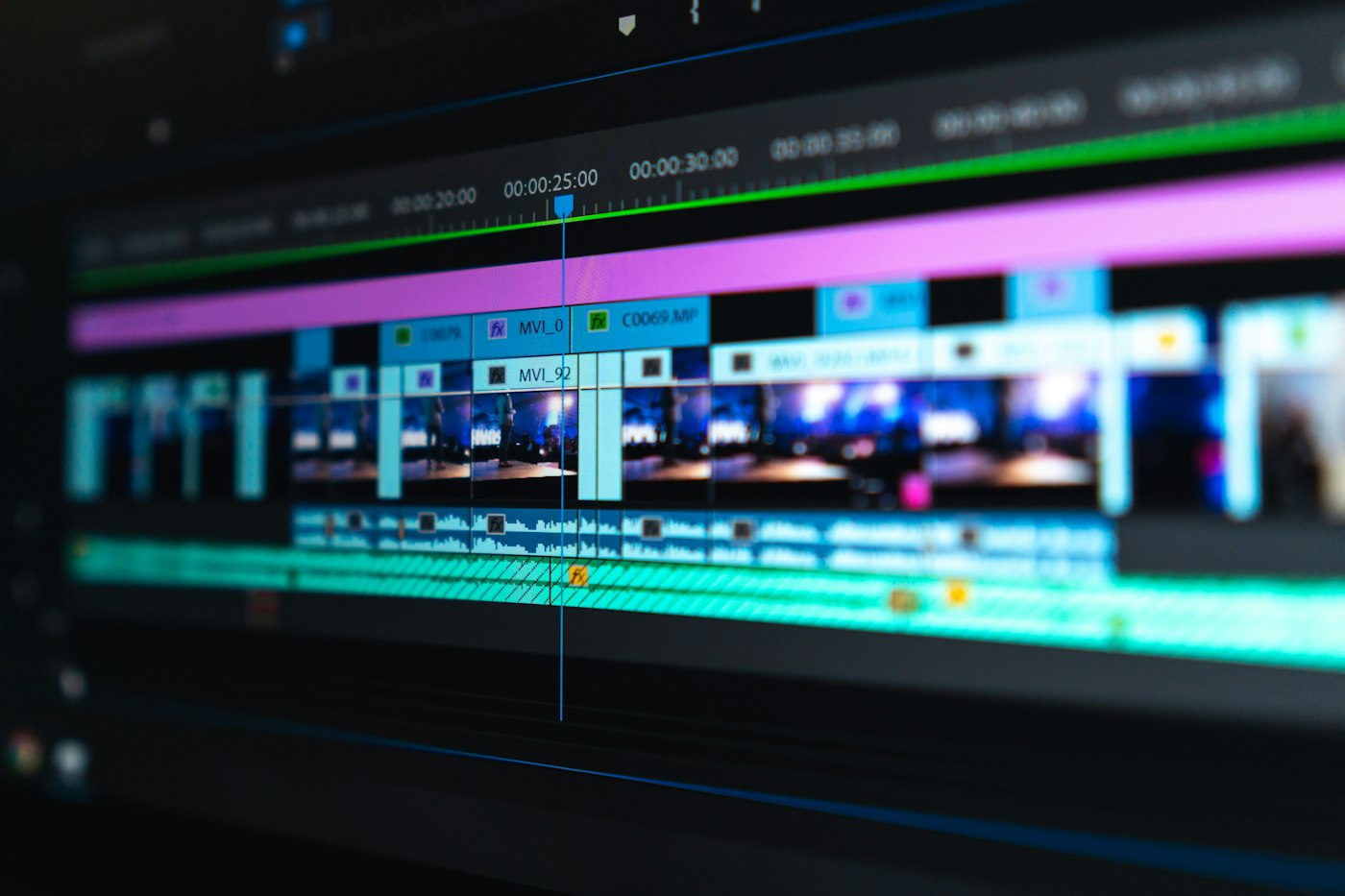
Both platforms re-encode every video you upload, so the goal is not a perfect file — it is a clean, standard file that survives re-encoding. These settings work well for both Reels and Shorts.
The settings
- Resolution: 1080 × 1920 pixels.
- Aspect ratio: 9:16 (vertical).
- Format: MP4 with H.264 video and AAC audio.
- Frame rate: match your footage — 30 fps is the safe default; use 60 fps only if you filmed in 60.
- Audio: stereo AAC, 128 kbps or higher.
Why 1080p is enough
Uploading a larger file does not make the platform show more detail, and extra size slows your upload on mobile data. Export at 1080p and let the platform do its own processing.
Mistakes that reduce quality
- Compressing the video heavily yourself before uploading — the platform compresses it again, and quality drops twice.
- Uploading a horizontal 16:9 video and letting the app crop it — reframe it yourself so captions and faces stay inside the frame.
- Putting captions in the bottom edge where the app overlays its own buttons — keep them in the lower-middle area.
In Cutlab
- Create a 9:16 project (the default).
- Edit and caption your video.
- Export at 1080p and 30 fps — Cutlab produces an MP4 where your browser supports it.